
Maho's admin image editor now enlarges photos four times, inside the browser
Pull request #1679 is merged: an Upscale tool that takes a photo from 256 to 1024 px in the tab, and an Adjust tool with ten sliders and thirteen filters.
The supplier sends the photo of the new product at 256 × 256 pixels: the bag fills half the frame and the rest is noise. On the product page it looks soft, in a category grid worse. Until today the route was Photoshop, or an online enlargement service, with a catalog photo that ends up who knows where. Pull request #1679 by fballiano, merged on 28 October 2026, moves that work into the Maho admin: open the image in the media library, pick 2× or 4×, and the model that enlarges it runs in the browser tab.
Upscale, in practice
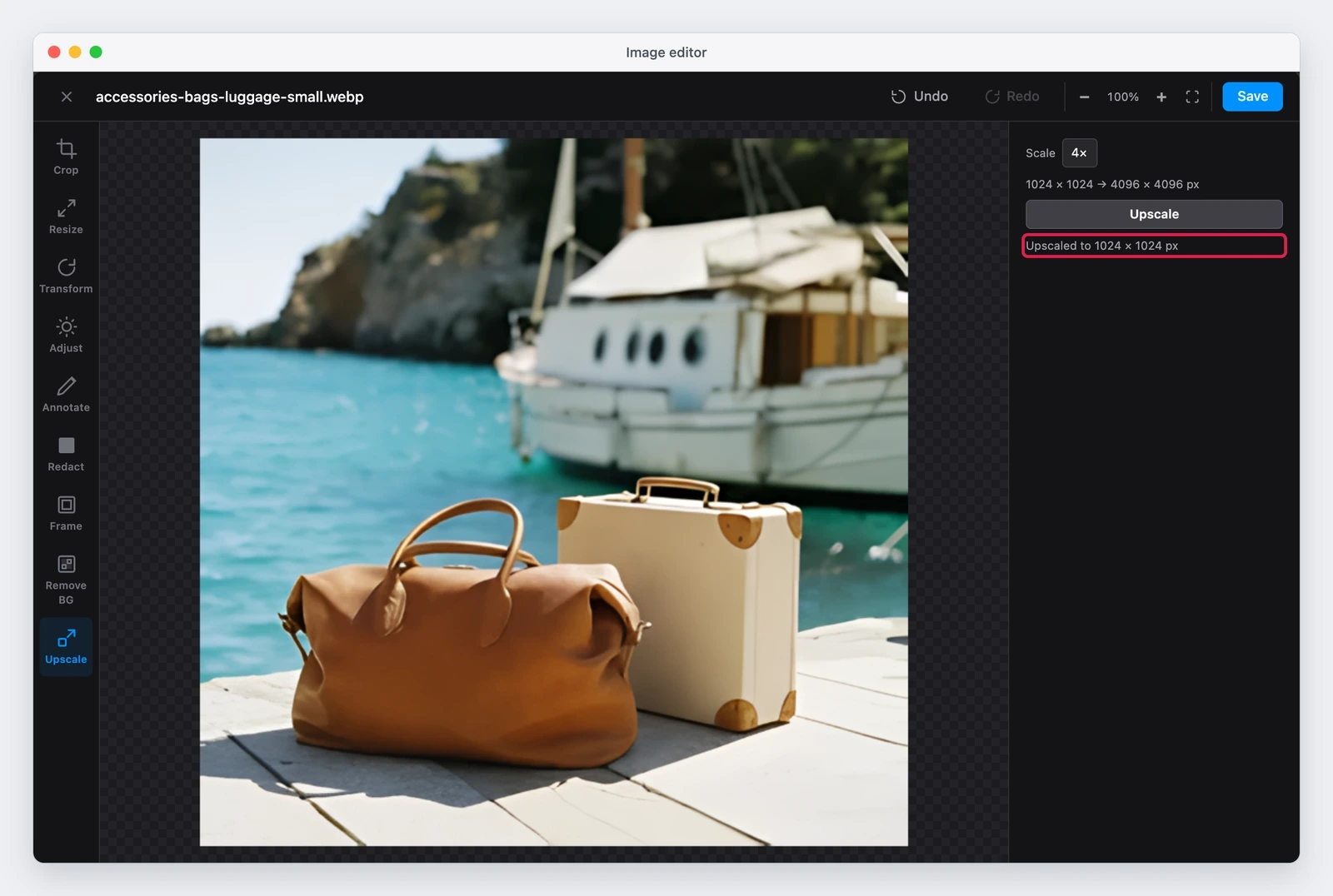
In CMS > Media Library you select an image and click Edit Image, or double-click the image. The tool bar on the left of the editor has a new Upscale entry: pick the scale, the line below shows the size before and after, and the button starts the job. While it runs, the tool says which tile it is working on, and Cancel stops it between two tiles. The result replaces the image and Undo brings the original back. The alpha channel of the source is kept.
The declared limit is 1024 pixels on the longest side: a larger image is refused with a message asking you to resize it first, because the largest result is 4096 pixels per side, which is what a Safari canvas can still hold. A 256 × 256 photo becomes 1024 × 1024, the usual size of a product page.
Why this is the part that convinced us
Three things, in the order they matter to whoever runs a catalog.
The photo never leaves the browser. The model is downloaded once and then runs locally. No upload to an outside service, no API key to configure, no bill per image. For a supplier photo that may come with usage terms, that is the difference between being allowed to work on it and not.
The quality was picked with a test, not with a preference. The author compared eight models with a permissive license, including Real-ESRGAN, BSRGAN, SwinIR and Swin2SR, on seven sample product photos, and kept Real HAT GAN sharper, a 2023 model under Apache 2.0, because it gave the best result on his images. The converted weights are published on Hugging Face as MahoCommerce/Real_HAT_GAN_sharper-ONNX, with the license and the credit to the authors, and the file carries the same SHA-256 as the original distributed by the model authors.
It behaves like a tool, not like a demo. The work is cut into tiles with an overlap band, so a large photo never has to sit in memory in one piece; progress is visible tile by tile, cancelling works between two tiles, and the model is released when the editor closes, after the running jobs finish.
An upscaler does not recover the detail that is missing, it draws a plausible one. That is fine for a bag or a shoe, and worth a close look on a label with small lettering.
What it costs in time
These are the author’s measurements on an M2 Pro with Chromium: about 4 seconds per tile on WebGPU and about 14 seconds on WASM. A 500 × 500 photo takes nine tiles, so the first run also pays for the model download, 161 MB in fp32, which the browser then keeps in its cache. The model runs in fp32 and not fp16 because at half precision it returns invalid values, and its input is a fixed 192 × 192 pixels: hence the tiles, with 16 pixels of overlap so no seam shows.
The Adjust tool, rebuilt
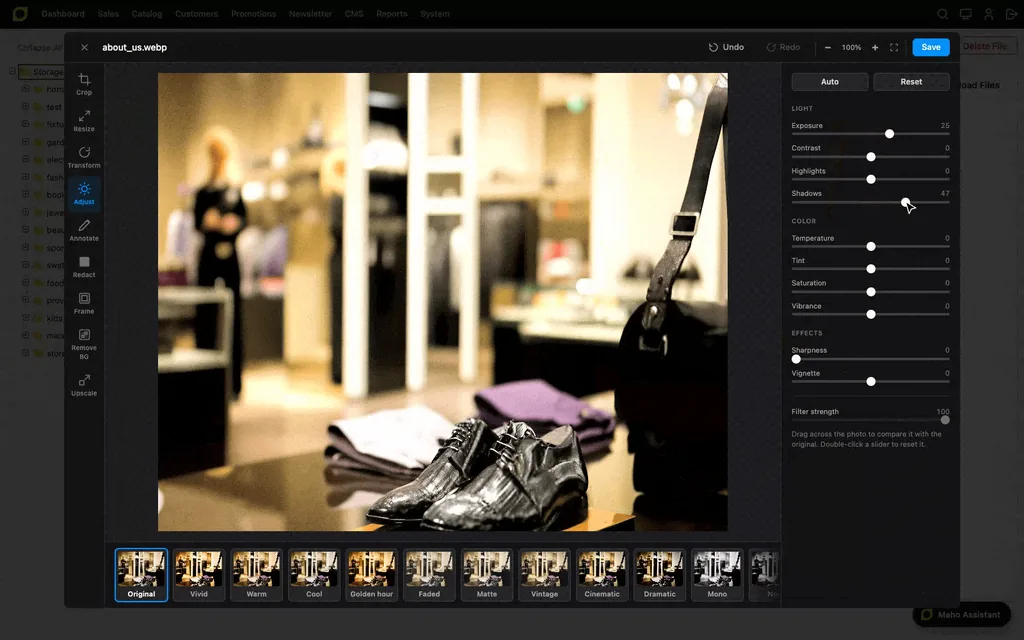
In the same pull request the Adjust tool gets a new engine. It used to apply the canvas CSS filters, which cannot touch a single tonal range or set a real white balance. Now every pixel is recomputed: exposure and white balance work in sRGB linear light, contrast uses an S-curve that leaves black and white in place, and sharpness only touches luminance, so edges get no color fringes.
The controls are ten sliders in three groups, Light with Exposure, Contrast, Highlights and Shadows, Color with Temperature, Tint, Saturation and Vibrance, Effects with Sharpness and Vignette. Temperature and Tint replace Warmth and Hue and work in both directions, so you can cool an image down, not only warm it up. Under the photo there are thirteen filters with a strength slider, and the bar carries Auto, which reads the luminance histogram and derives the white balance from the pixels that are nearly gray, plus Reset. Dragging across the photo opens a compare line: the original on the left, the result on the right.
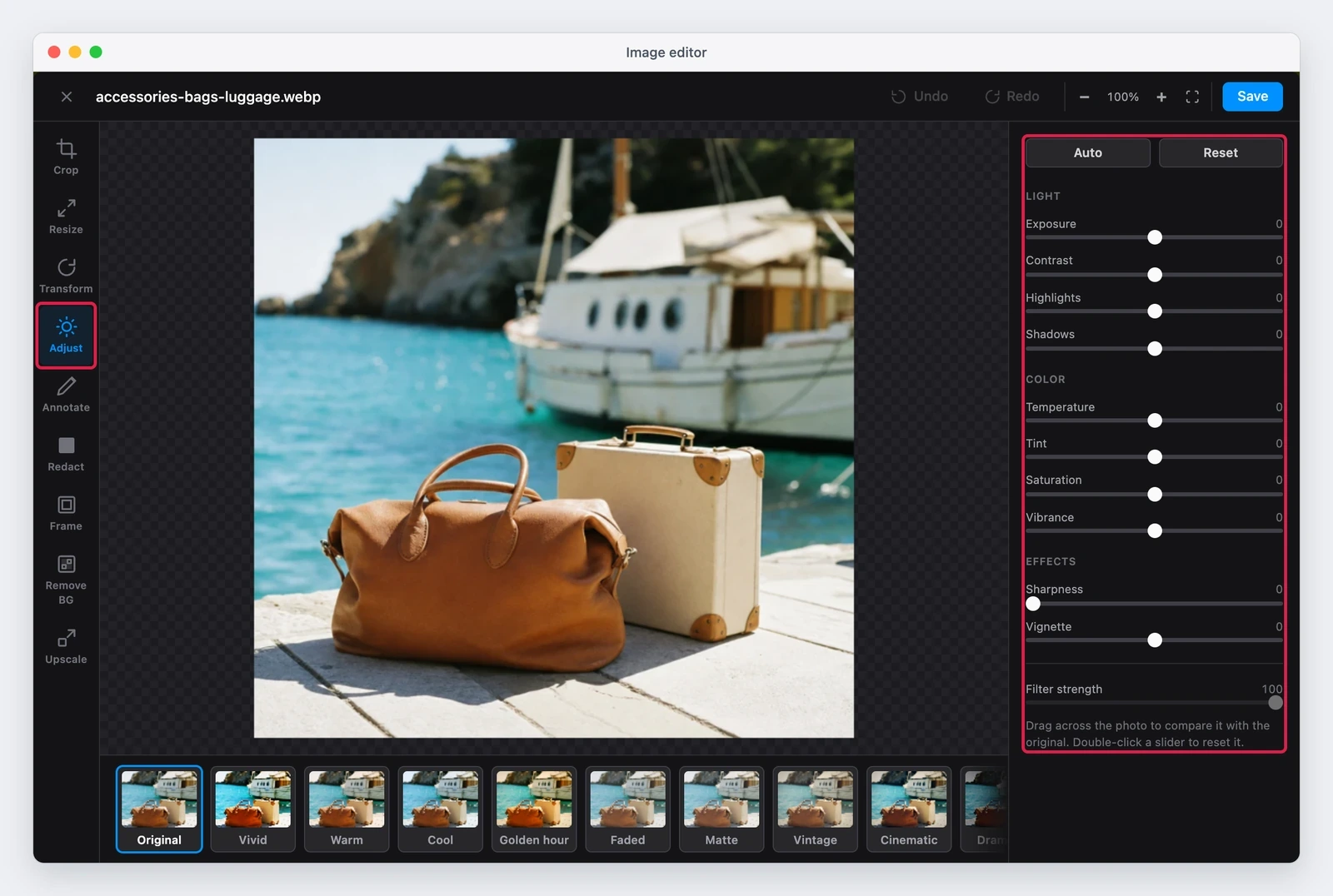
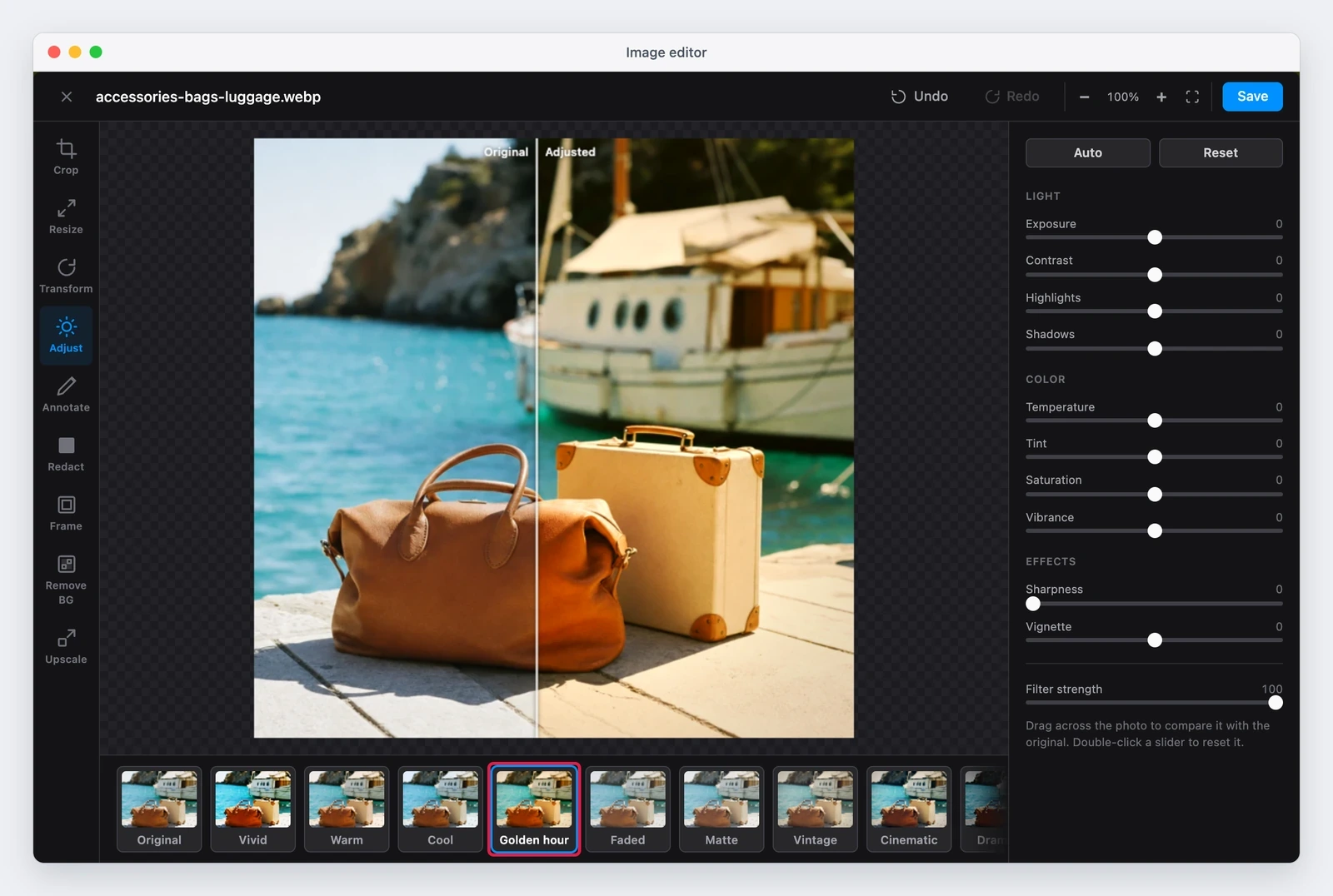
The layout changes too: the options of every tool now sit in a column right of the photo, not under it, and a square or portrait photo gains space. Below 1100 pixels of width the panel goes back under the photo. While a slider moves, the preview is drawn at the size of the view, and the full-size render arrives 250 milliseconds after the last movement; one drag is a single undo step, not fifty. Save uses the same render.
The rest of the editor
The panel on the right does not add two tools: it rearranges all the ones the media library editor already had, and it is worth having the full picture of what you can do to an image without leaving the admin.
| Tool | What it does |
|---|---|
| Crop | Crops with the ready formats, two per row; here you pick the ratio, 16:9 for instance |
| Resize | Width and height, with the aspect ratio lock |
| Transform | Rotates and flips |
| Adjust | Ten sliders in three groups, thirteen filters with strength, Auto, Reset and a compare line |
| Annotate | Shapes with color, size and opacity, to mark a detail on a return photo |
| Redact | Hides an area with a pixelated effect, to cover a face or a document |
| Frame | Frames, the Polaroid style for instance |
| Remove BG | Removes the background, with the options to fill the gap with a new color |
| Upscale | Enlarges 2× or 4× with the AI model in the browser |
Two of them, Upscale and Remove BG, are the AI tools: they use the same transformers.js runtime and the same WebGPU check, in a shared module, and neither sends the image outside the tab.
Also in this pull request
- The admin theme gives every
buttonthe height of a daisyUI button, 28 pixels. Inside the editor that made tool labels overlap their icons, also onmain, and it cut off the filter names: the tool buttons and the filter buttons now take the height of their content. - The license rule was fixed:
AGENTS.mdsaid that new JS and CSS files use OSL-3.0, while in Magento JS and CSS are AFL-3.0 and only PHP is OSL-3.0. The three new editor files use AFL-3.0, and the 49 JS and CSS files that took OSL-3.0 after the SPDX migration keep their license. - Background removal never showed the “Background removed” status, because it redrew its options before setting it: now it sets it afterwards.
- The pull request carries the
✨ ai-assistedlabel, which in the repository marks work done with the help of a model.
The idea for both tools comes from the Studio of Open Creative Cloud, which the author thanks in the description. That project’s code has no license, so it was not reused: the engine, the interface and the filter values are written here, with three filters (Sepia, Golden hour, Vivid) tuned by eye until they looked like the originals.
The declared limits
These are the points the author puts in writing in the pull request, and they should be read before promising the tool to a client:
- both tools were tested in Chromium, in the admin of a store with sample data. They were not tested in Safari or Firefox;
- the WASM fallback uses several threads only on a page with cross-origin isolation, and the author did not check whether the admin sends those headers. Without them, both Upscale and background removal are slower;
- the full-size render of a 4000 × 3000 photo blocks the page for about 0.4 seconds. A Web Worker can remove that, if it becomes a problem;
- one bug that also exists on
mainis still there: a Redact area that goes past the edge of the photo draws black outside the photo.
When it lands
The pull request is merged into main on 28 October 2026, and the 26.11.0 milestone was still open
when this article was written, so the code ships with that release. For a store that updates small
supplier photos, the saving is not just the Photoshop time: the photo is fixed where it is uploaded,
without another program in between and without handing the catalog to an outside service.
For the picture of the platform, with the changes the releases carry forward, the overview is on the Discover MahoCommerce page.
Text prepared with the help of AI and checked against the source before publication. It can still contain mistakes: if you find one, report it.Read the manifesto
Source: MahoCommerce/maho#1679
Does your store still sell?
Tell us where you are starting from: we reply with a first assessment, no strings attached.
Ask for the store assessment